
Edit Headshots
Last updated: January 23, 2026
Once your headshots are ready, you can review them and make edits, depending on your package:
Basic Plan: No edit credits
Professional Plan: 10 edit credits
Executive Plan: 40 edit credits
Using an edit credit changes only the specific item you've selected, everything else in the photo stays the same.
What you can change
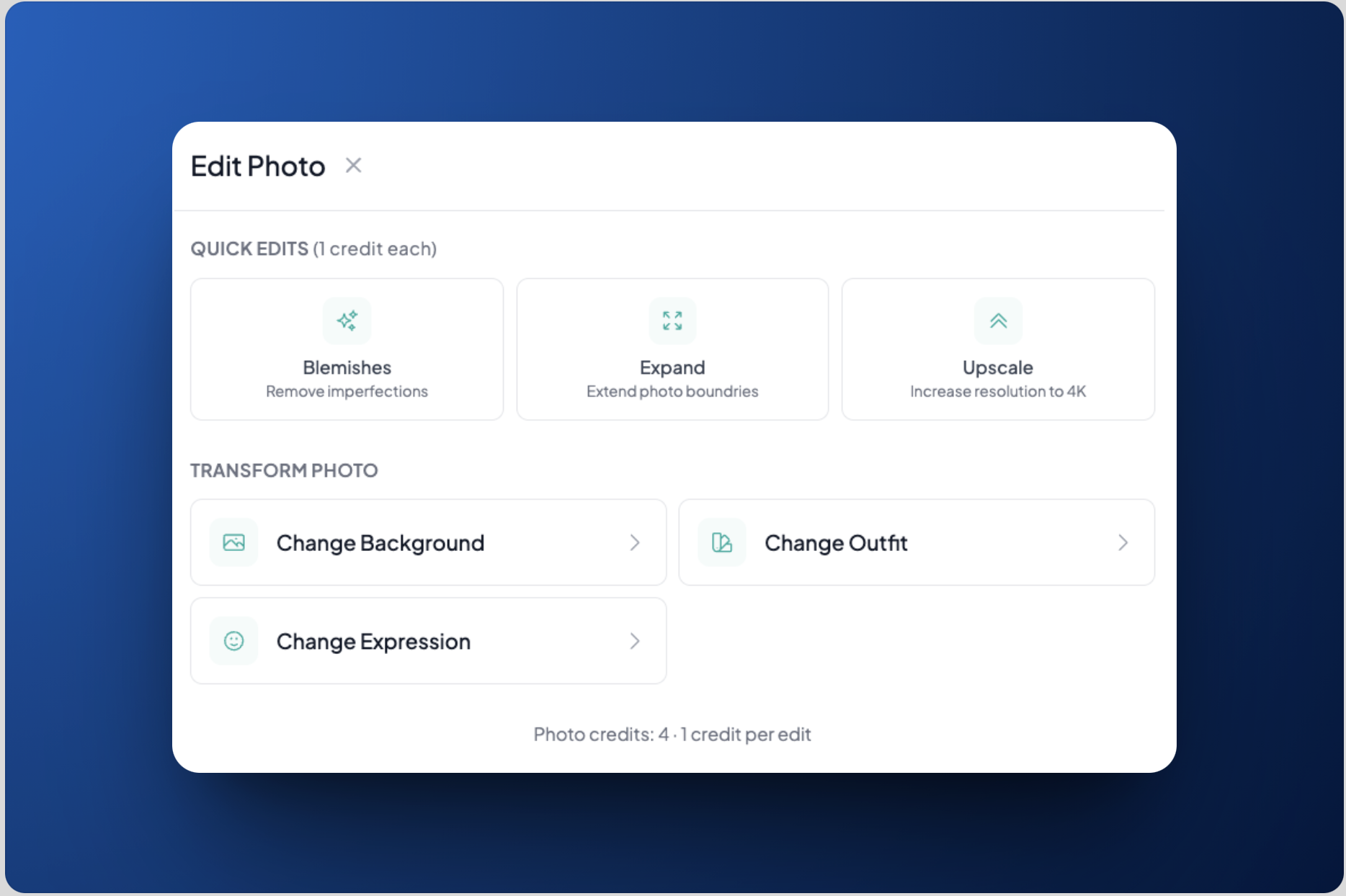
For any headshot, you can edit any of the following items:
Remove blemish
Expand image
Tip: If you notice your headshot is too zoomed in for LinkedIn, use this feature to create more space around yourself.
Upscale your image to 4K resolution
Change background
Change outfit
How to edit a headshot
Go to the page where all your headshots appear
Hover over the headshot you want to edit
Click the pen icon
Select the item you want to change
Click Apply change
Wait. Edits are processed in under 1 hour
Both the original photo and the new edited version will appear together on the results page
Get a new set of headshots
At HeadshotPro, we guarantee you’ll find at least one headshot you love. If you’re unhappy with all of your headshots, you can redo the entire set by following the steps below.
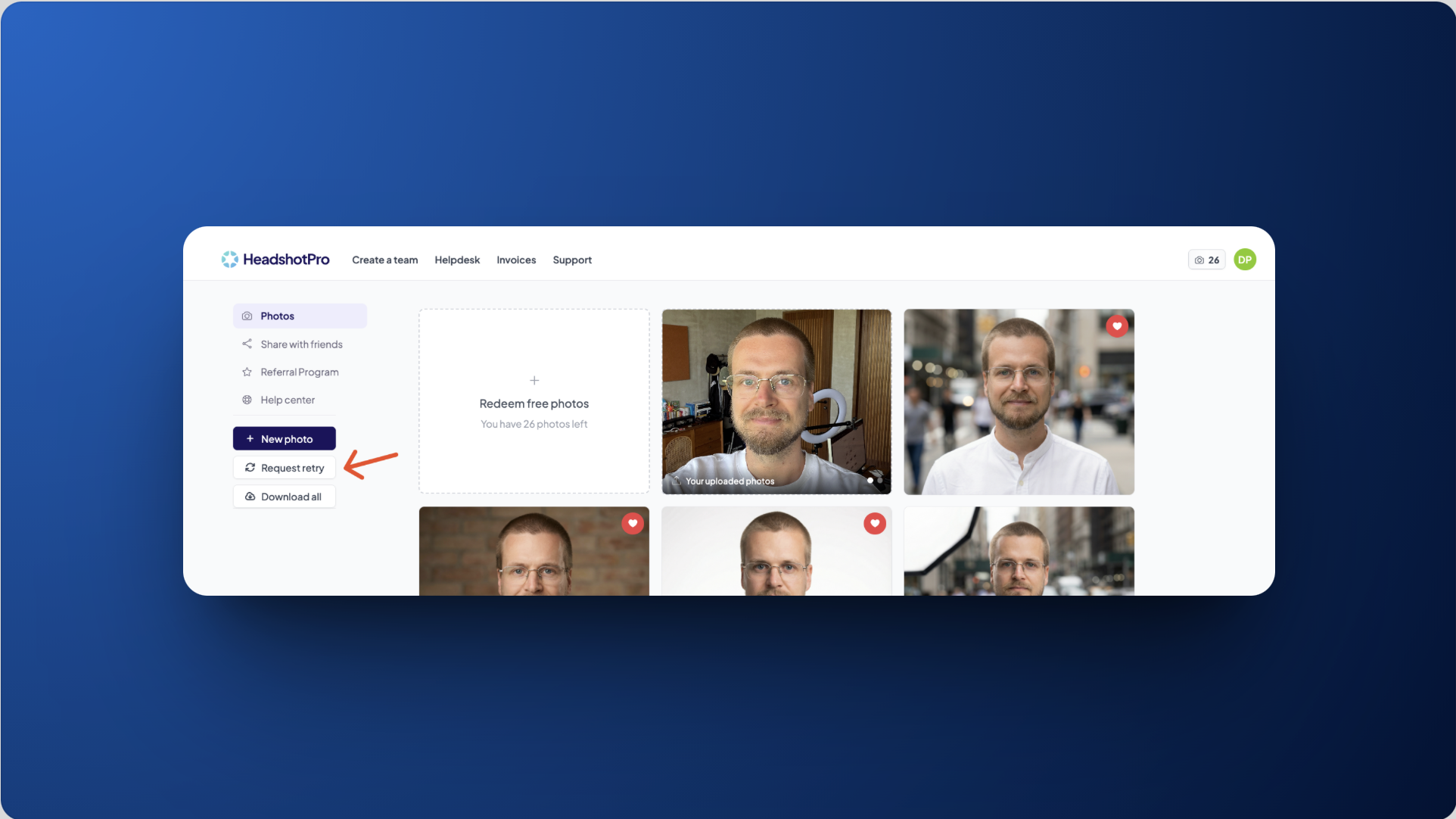
Go to your dashboard
Click Request retry
In the pop-up, click Confirm Reshoot
Note: Requesting a retry will permanently delete your original set of photos. If there are any headshots you want to keep, make sure to download them first.